

Image Export
Images can be generated alongside articles and downloaded individually or in bulk.
Image Generation
To include images with generated articles:
- When creating a new article worker, click Image Generation Options
- Toggle Generate Images on
- Configure:
- Image count per article
- Image style and keywords (optional)
- Complete the article generation workflow
Generated images are stored locally in the app data directory and referenced in article HTML.
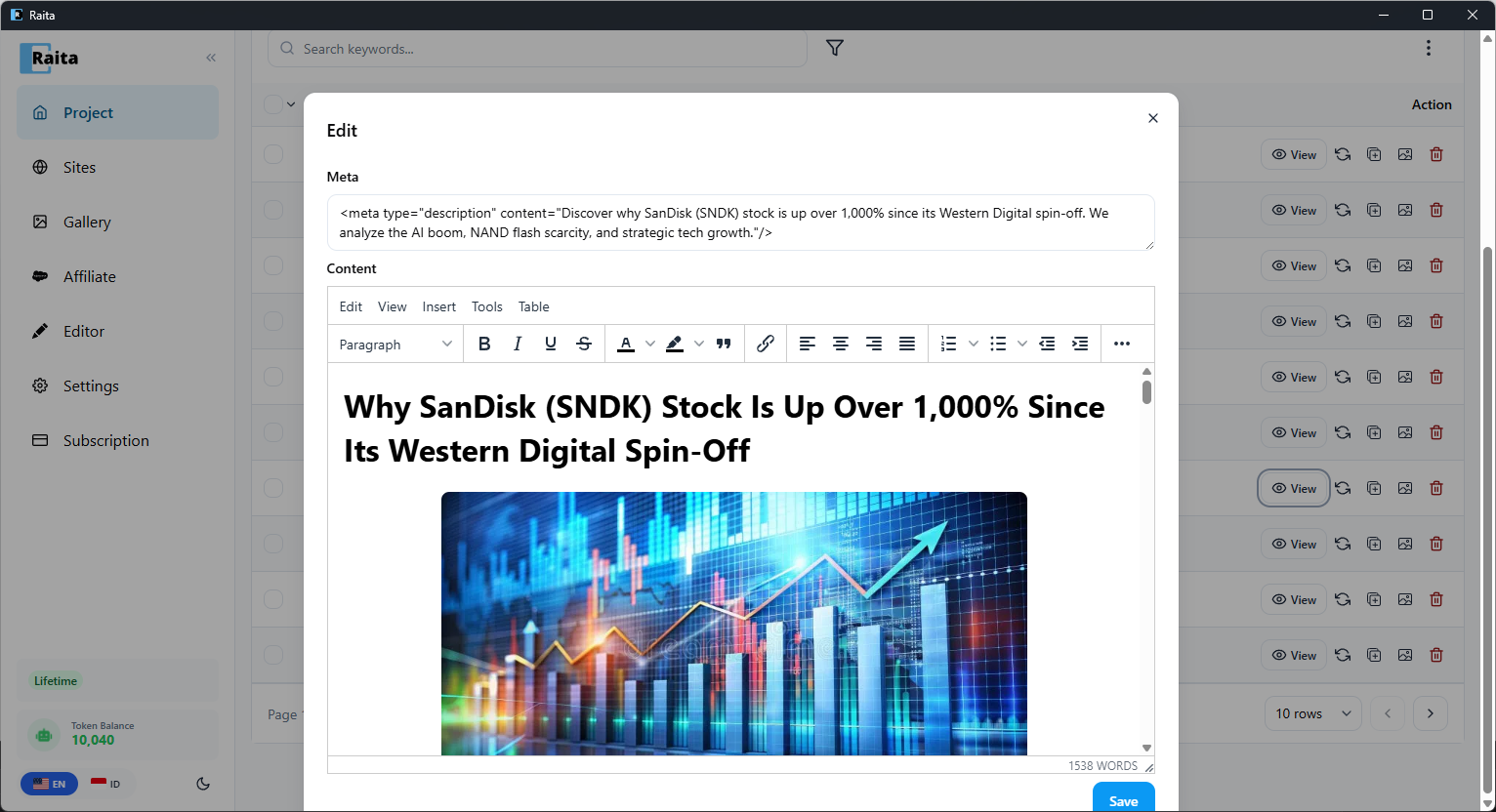
Viewing Generated Images
Once an article is generated with images:
- Click View on the article row to open the editor
- Images appear inline with the article content
Downloading Images
When you export an article (WordPress XML, HTML, etc.), images are automatically included — you don't need to export them separately.
If you do need to download images without exporting the article (rarely needed), you can:
- Click the Export Image button on an individual article row
- Use Bulk Export Image from the ⋮ menu to download all images at once
Image Format and Storage
- Generated images are converted to WebP format for optimal file size
- Images stored locally as:
{project_id}/images/{slug}_{worker_id}/managed_{slug}_{index}.webp - Downloaded images retain WebP format unless using legacy BYOK image sources (Bing), which may be PNG/JPG