Reviewing Articles
Viewing & Editing a Result
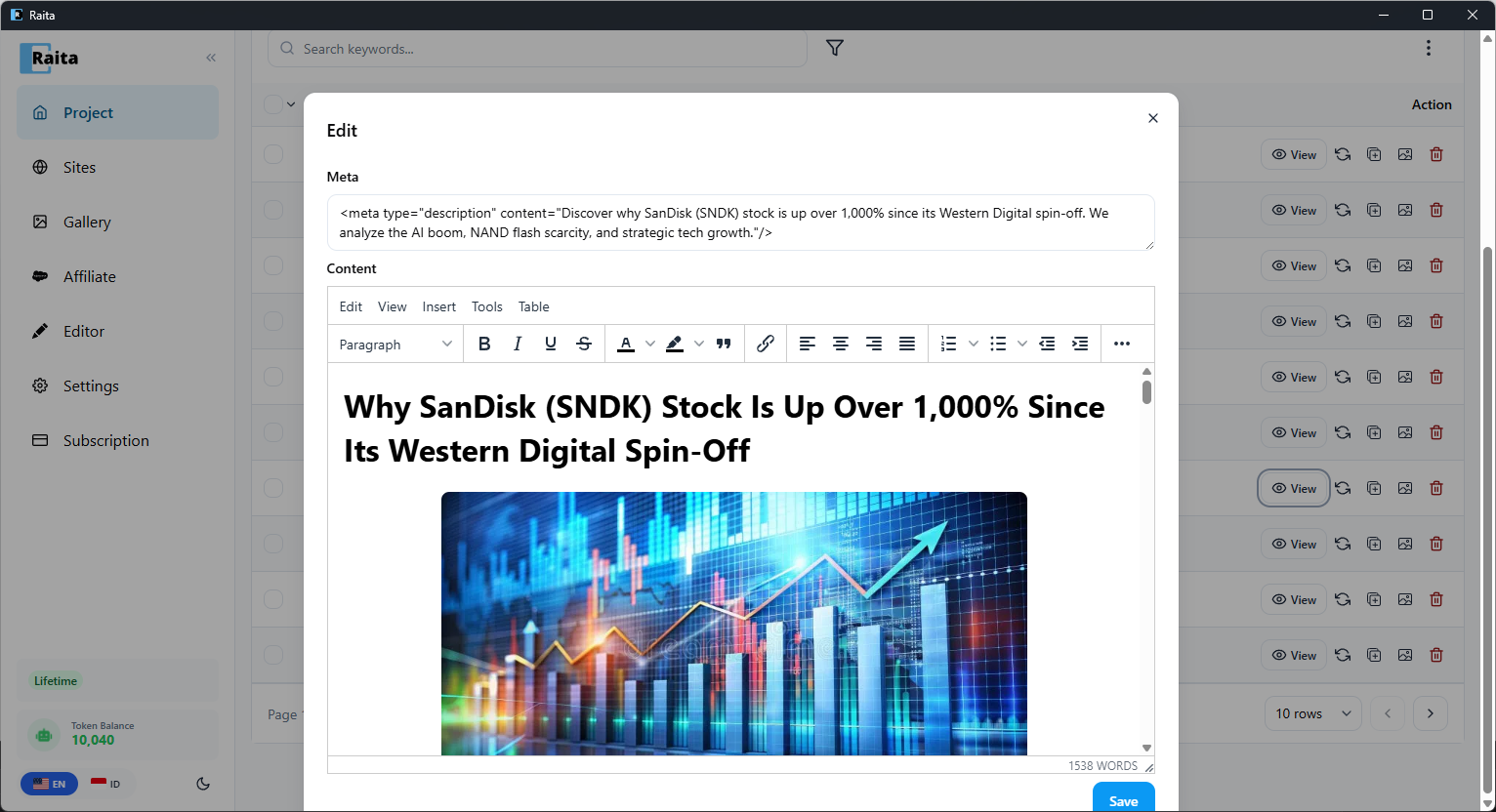
Click the View button on any row in the article table to open the article. This opens a rendered HTML editor where you can read and edit the generated content directly.
The editor supports rich text — use the toolbar to adjust headings, formatting, lists, and links. You can also edit the Meta description. Click Save to persist your changes.
Row Actions
Each worker row has inline action buttons on the right side:
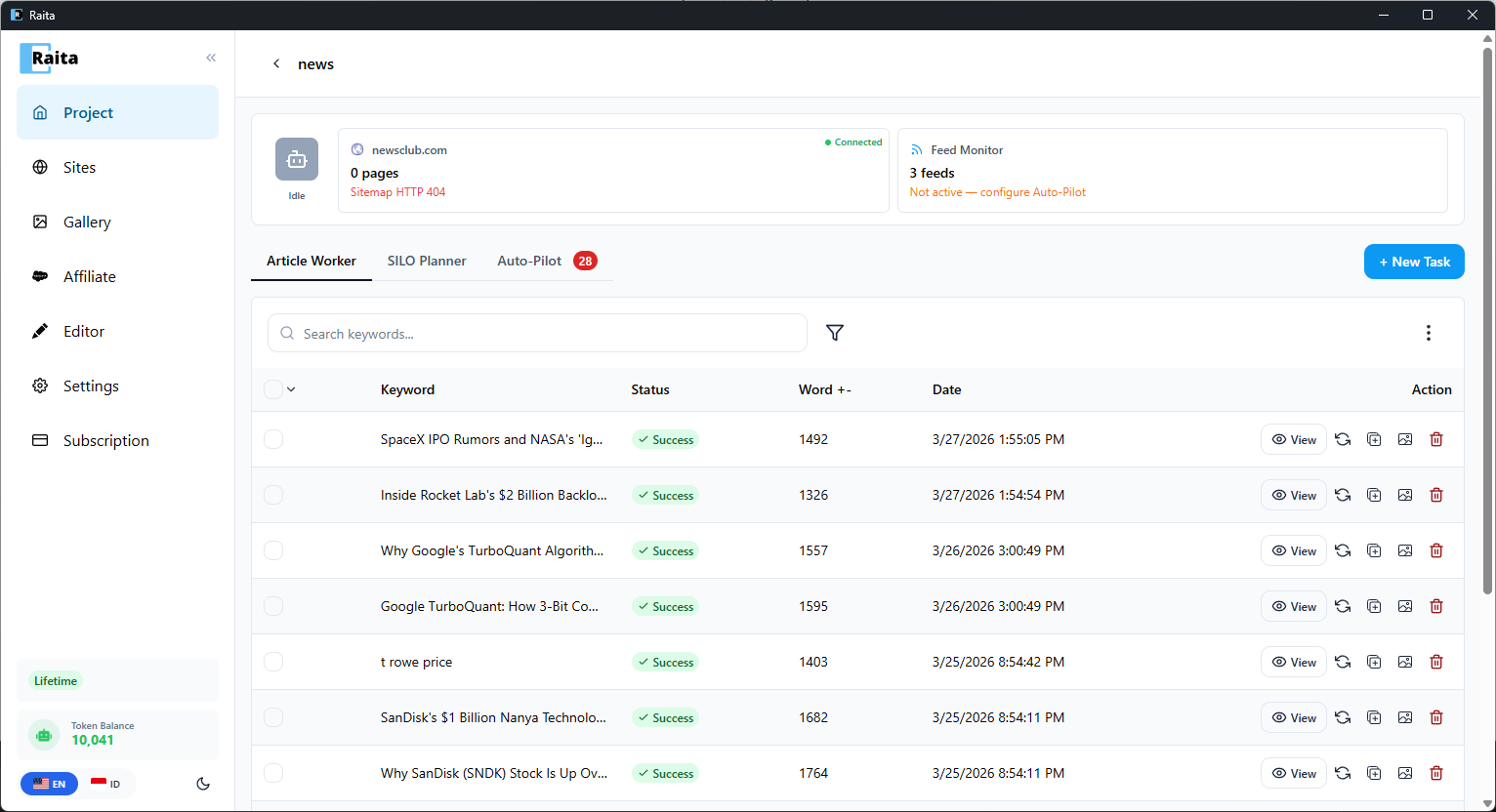
| Button | Action |
|---|---|
| View | Open the article in the editor |
| Retry | Re-run the worker to regenerate the article |
| Copy | Copy the article HTML to your clipboard |
| Export | Export the individual article |
| Delete | Permanently delete the worker and its result |
Bulk Actions
Click the ⋮ menu button (top-right of the article table) to access bulk actions:
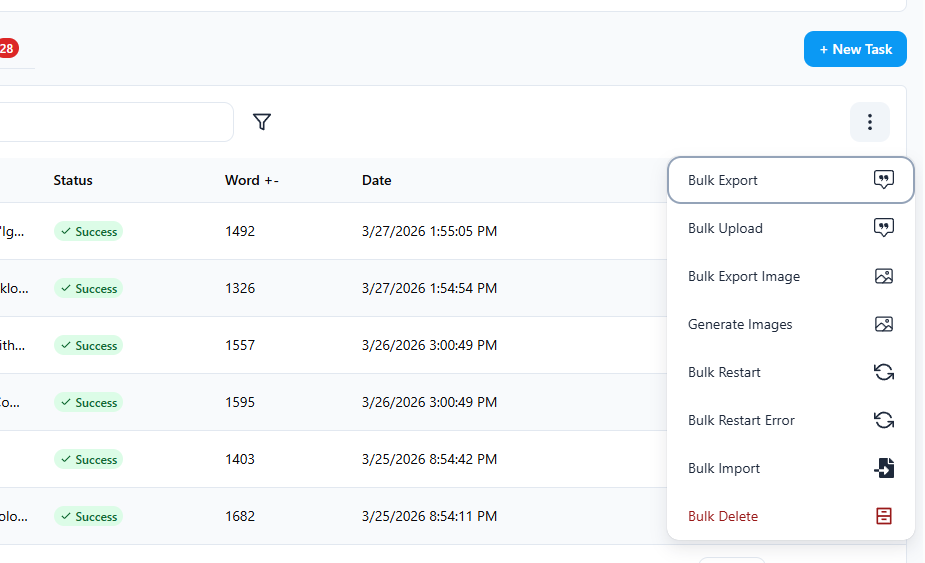
- Bulk Export — export all articles (WordPress XML, HTML, CSV, etc.)
- Bulk Upload — upload all articles to your connected WordPress site
- Bulk Export Image — export all generated images
- Generate Images — generate images for articles that don't have one
- Bulk Restart — re-run all workers
- Bulk Restart Error — re-run only failed workers
- Bulk Import — import topics from a CSV/XLSX file
- Bulk Delete — delete all workers
Filtering & Search
Use the search bar to search articles by keyword. Click the filter icon next to the search bar to open the filter panel:
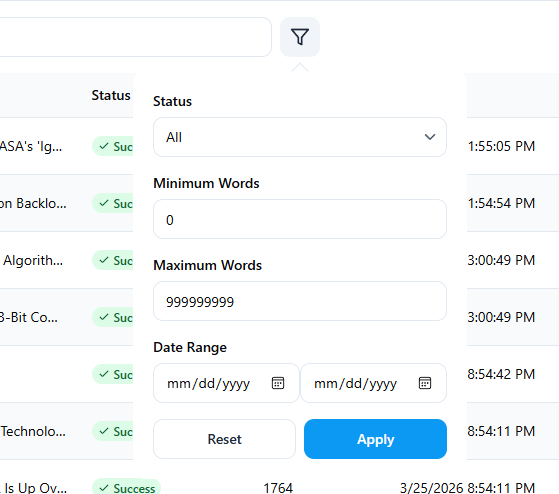
- Status — filter by status (All, Success, Failed, Running, Pending)
- Minimum / Maximum Words — filter by word count range
- Date Range — filter by generation date
Click Apply to apply filters, or Reset to clear them.