Google Trends
Google Trends is a feed source available in Auto-Pilot that discovers trending topics and automatically turns them into article workers.
Unlike RSS feeds, Google Trends pulls trending search topics from Google, optionally filters them by relevance using AI, and generates articles from researched ideas.
Setup
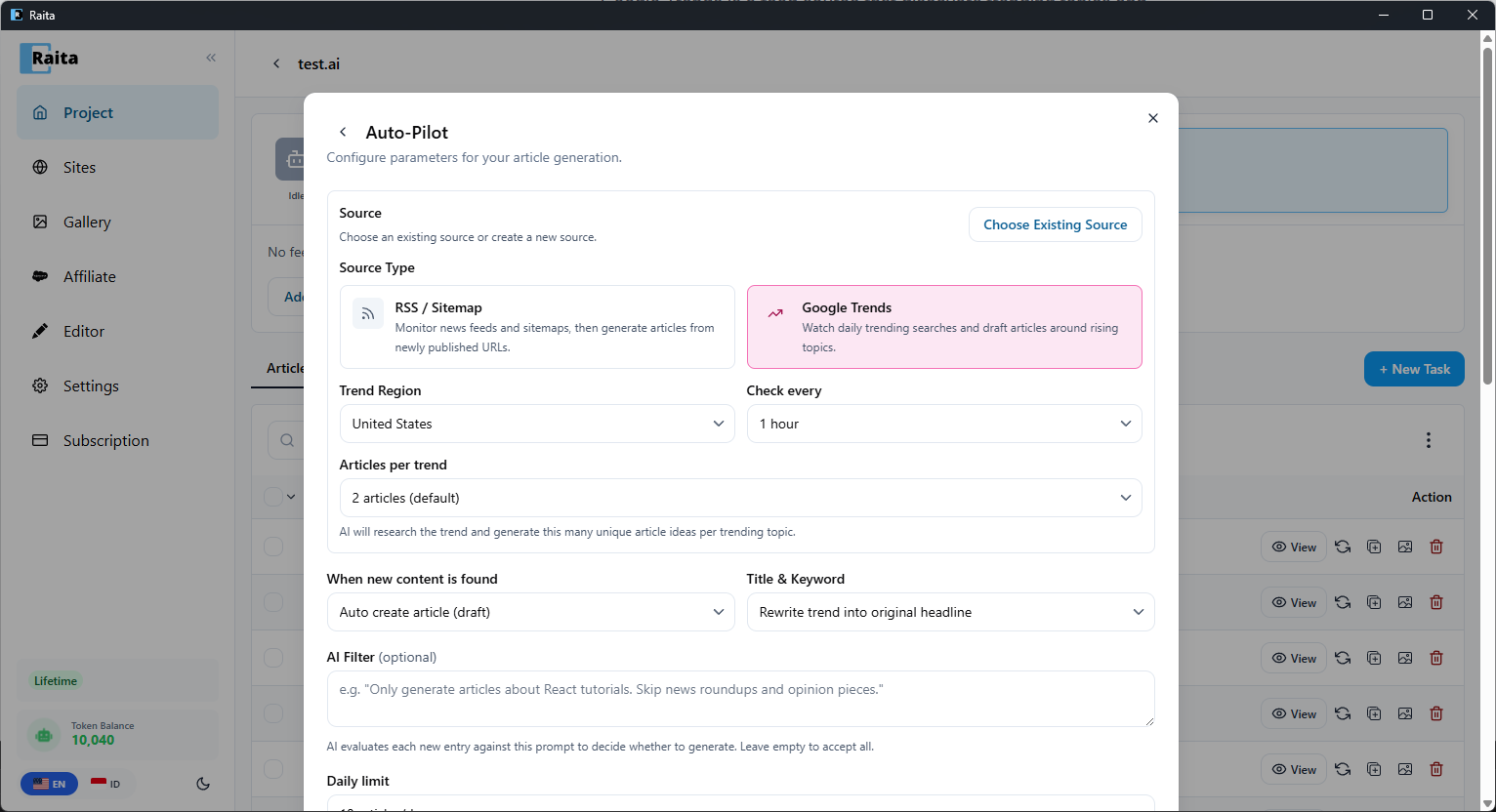
Google Trends is configured as an Auto-Pilot source. Go to your project, click the Auto-Pilot tab, and create a new source with Google Trends selected.
- Set Trend Region — choose the country to monitor (e.g. United States, Indonesia)
- Set Check every — how often to poll for new trends (e.g. every 1 hour)
- Set Articles per trend — how many unique article ideas AI generates per trending topic (default: 2)
- Choose When new content is found — auto-create as draft, auto-publish, or manual review
- Set AI Filter (optional) — a prompt to only accept trends matching your niche (e.g. "Only generate articles about coffee")
- Choose a Generation Prompt — pick a starter template or configure manually
- Click Generate
Active Feeds & Inbox
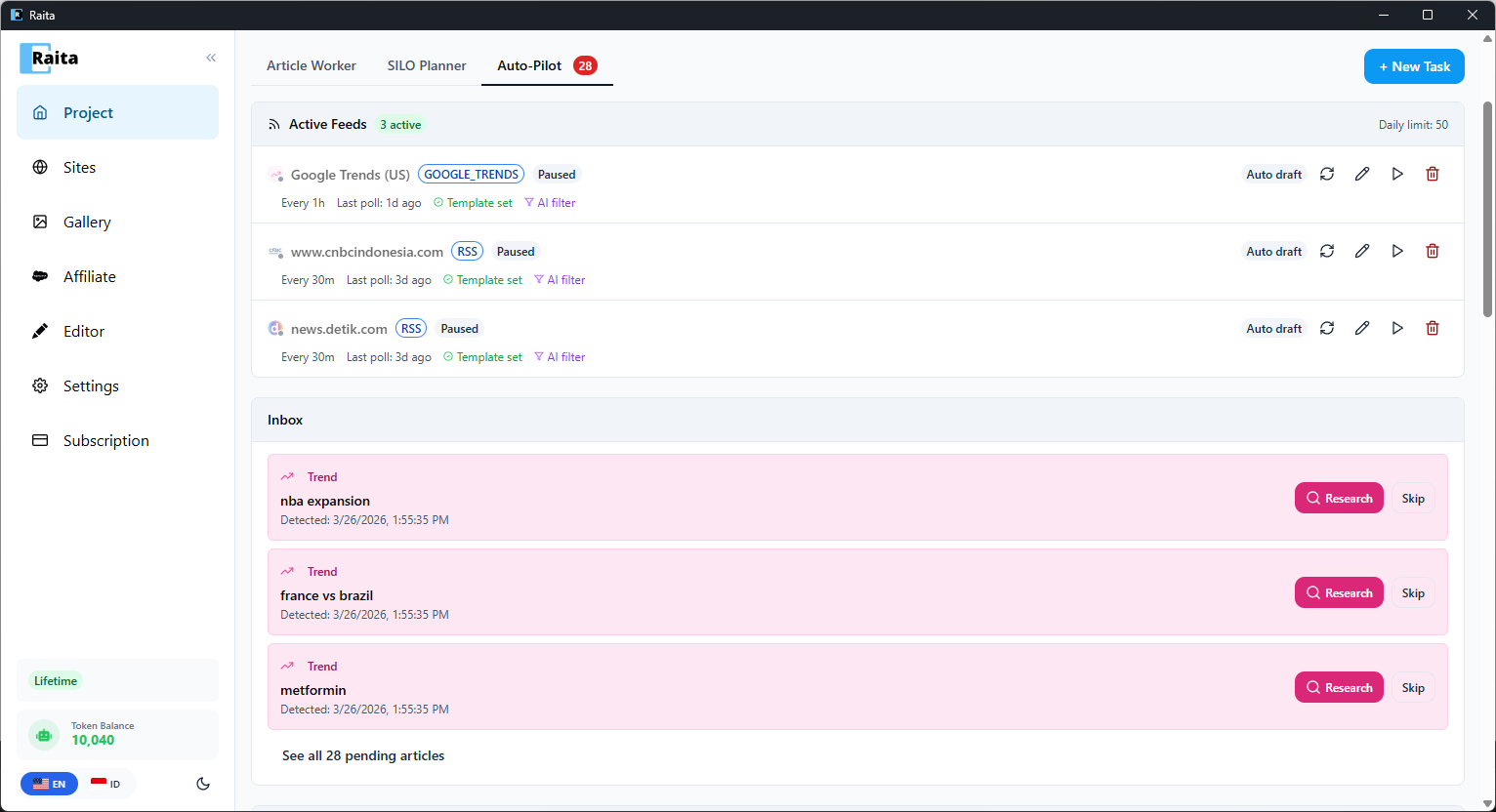
Once configured, Google Trends appears as an active feed in the Auto-Pilot tab alongside any RSS/Sitemap feeds. Raita polls for new trends on your configured schedule.
When the policy is set to manual review, or when AI is unsure about a trend's relevance, trends land in the Inbox:
- Research — AI researches the trend using web search and generates multiple unique article ideas. These are then queued as Article Workers.
- Skip — dismiss the trend if it doesn't match your niche
For auto-draft or auto-publish sources, articles are created automatically without appearing in the inbox.
Activity Log
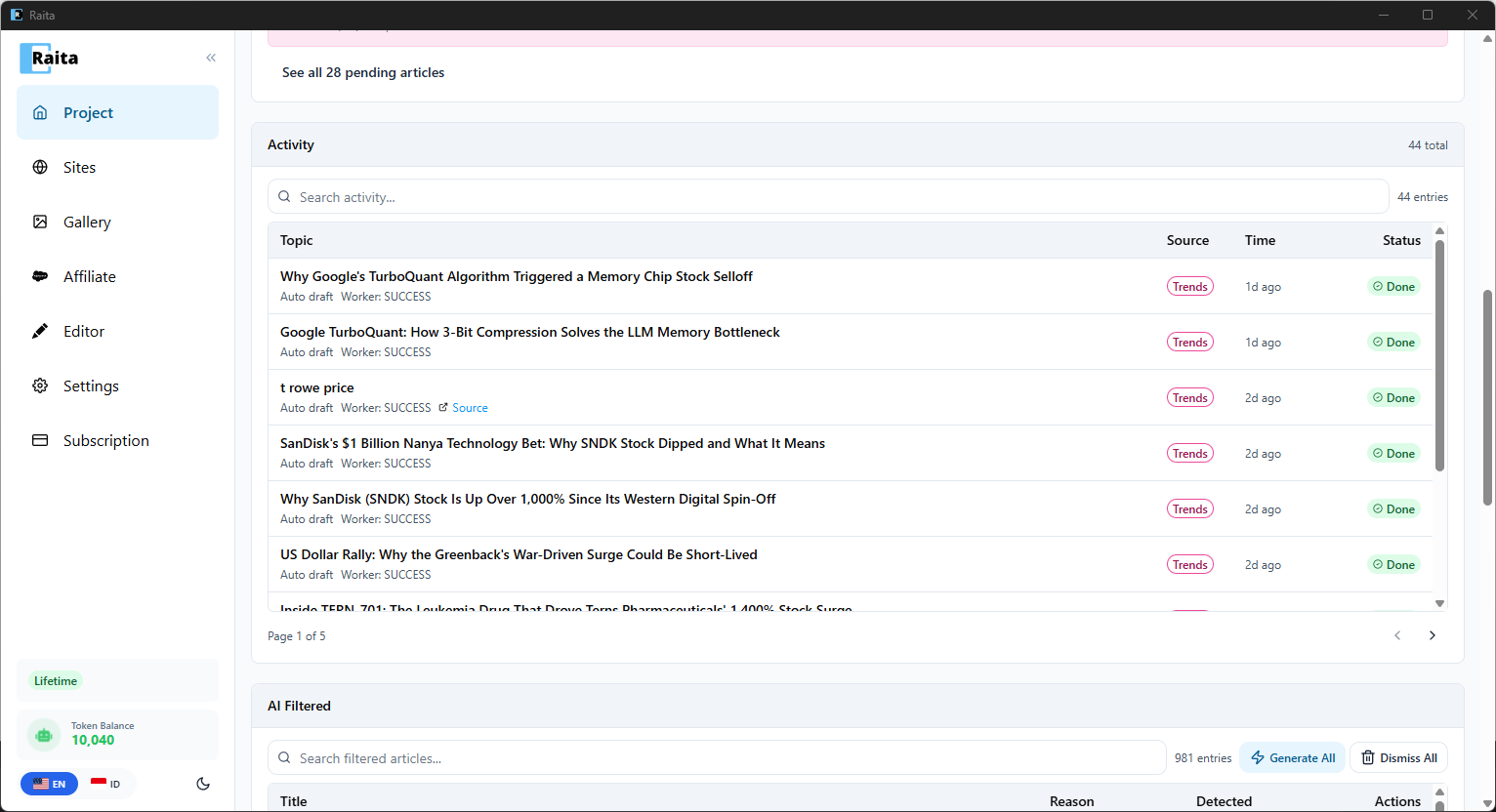
Generated articles show up in both the regular Article Worker table and the Activity log on the Auto-Pilot tab. Each entry shows the article topic, source (Trends), time, and status.
AI Filtered
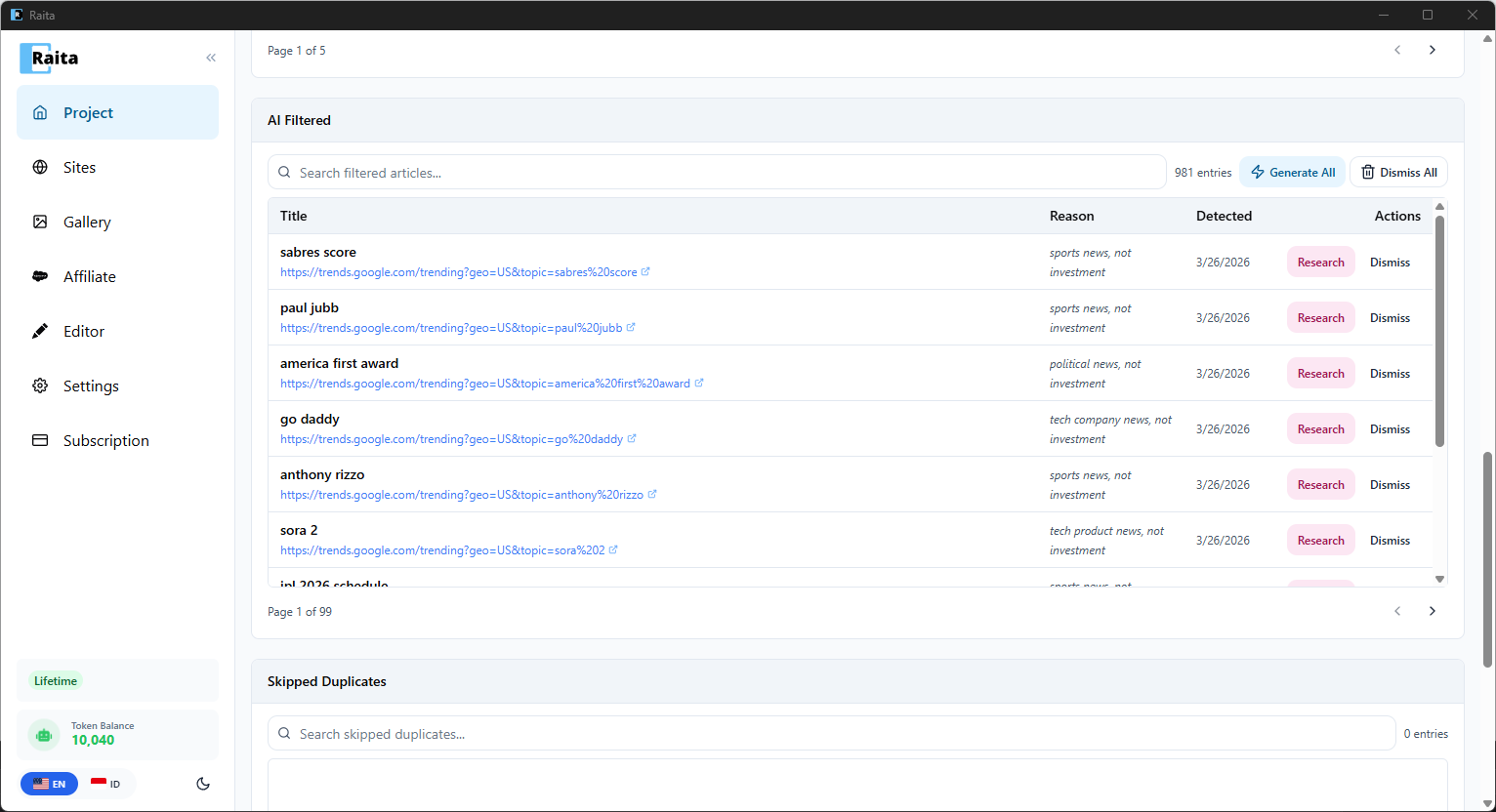
Trends rejected by your AI filter appear in the AI Filtered section with the rejection reason (e.g. "sports news, not investment"). You can still Research them to override the filter, or Dismiss them permanently.
Notes
- Google Trends requires no API key — it uses public trending data
- Article ideas are generated using AI with web search enabled, so they're contextually enriched
- Trend topics are short-lived and are automatically cleaned up after 3 days
- Each trend can generate multiple article ideas (configurable via "Articles per trend")
- Trends are region-specific — choose the region where your audience is located