

Compose Mode
Compose mode generates an article as a series of independent sections, then joins them with a separator string. You define each section with its own prompt.
Best for:
- Articles where each section has a distinct purpose or format
- Long-form content where you want different tone/style per section
- Sequential content where each section builds on the previous (use
{chain})
Starter Templates
Raita ships with ready-to-use Compose templates so you can start generating immediately:
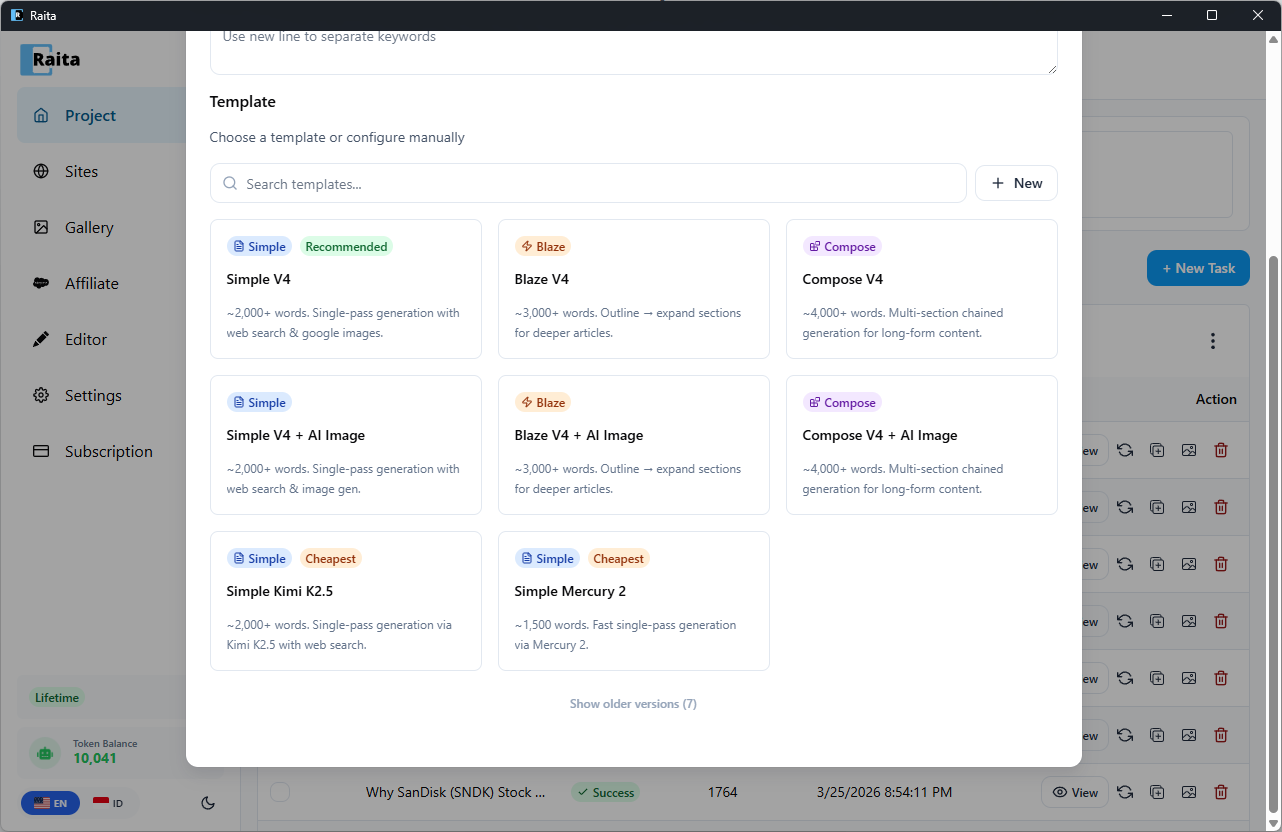
| Template | Description |
|---|---|
| Compose V4 | ~4,000+ words. Multi-section chained generation for long-form content. |
| Compose V4 + AI Image | ~4,000+ words. Multi-section chained generation with AI image generation. |
To use a starter template, click + New Task, then select a template from the template picker. All section prompts are pre-configured — just enter your keywords and generate.
Configuration
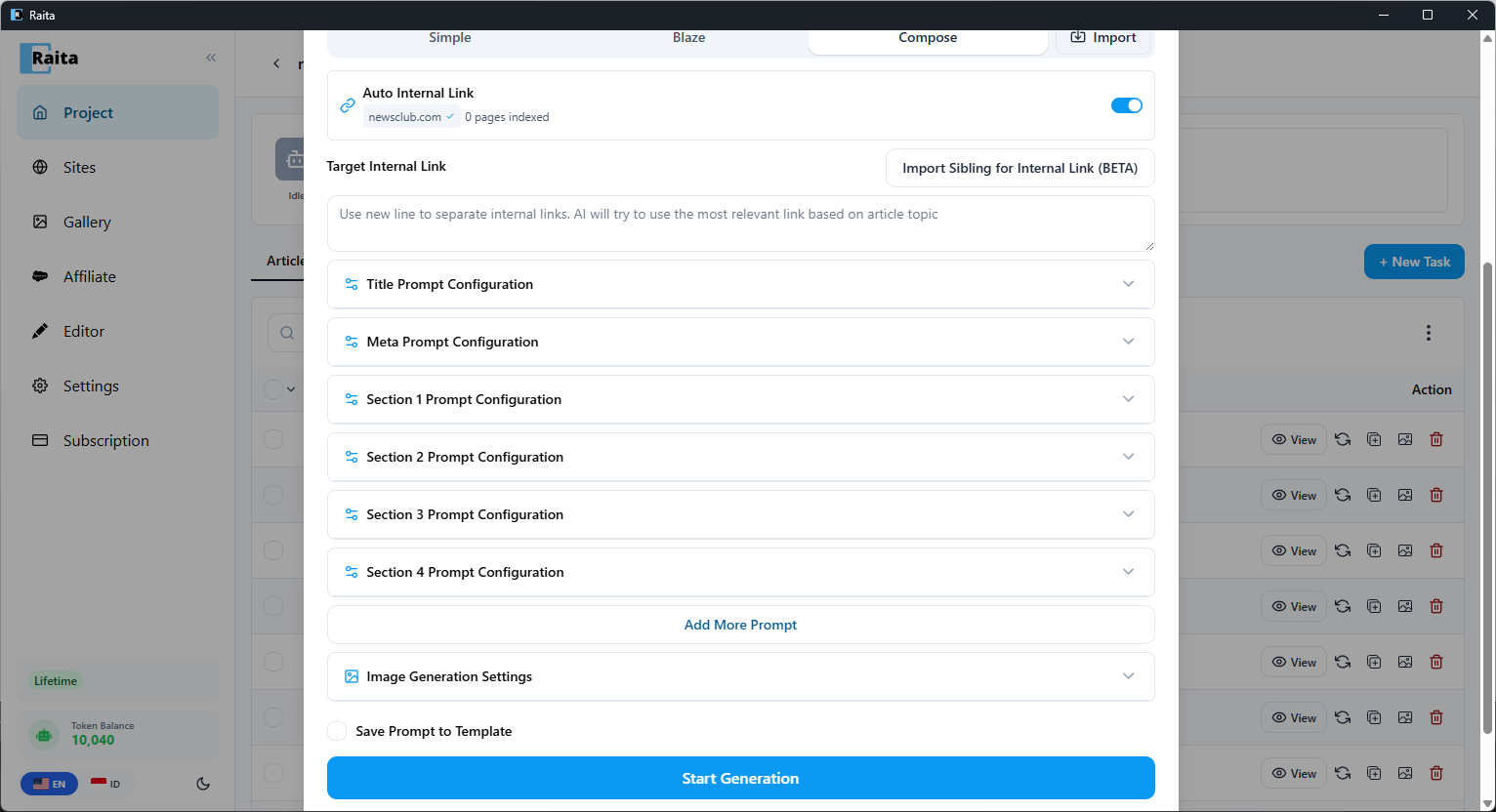
In the New Task form, select the Compose tab.
Fields
Title Prompt (optional)
Generates the article title. If left blank, the topic is used as the title.
Meta Prompt (optional)
Generates an HTML meta description.
Contents
The main section list. Each entry is one prompt with its own prompt text, temperature, and model.
Add sections with + Add Section. Each section generates independently by default.
The output of all sections is joined with the Glue String to form the final article.
Example contents list for a product review article:
- Section 1:
Write an introduction for a review of {topic}. HTML, 1-2 paragraphs. - Section 2:
Write a "Key Features" section for {topic}. HTML with bullet points. - Section 3:
Write a "Pros and Cons" section for {topic}. HTML table format. - Section 4:
Write a conclusion and recommendation for {topic}. HTML, 1 paragraph.
Glue String
The string inserted between each generated section. Default is an empty string (sections are concatenated directly). Common values:
\n\n— two newlines<hr>— horizontal rule<!-- section-break -->— comment separator
Internal Link Target
A list of URLs or sitemap URLs to use for internal link injection. See Using Internal Links.
Parallel vs Chained Generation
By default, all sections are generated in parallel — each section prompt runs simultaneously.
If any section prompt contains {chain}, the entire article switches to sequential (chained) generation:
- Sections run one at a time, in order
- Each section receives the concatenated output of all previous sections as
{chain} - Use this when later sections need to reference earlier content
Example chained prompt:
Continue the article. So far: {chain}

Now write the "Advanced Tips" section for {topic}. HTML format, 300 words.
Available Variables
| Variable | Description |
|---|---|
{topic}, {keyword}, {niche}, {language} | Standard variables |
{title} | Generated title (if title prompt configured) |
{index} | Section index (0-based) |
{internalLink} | One internal link (from target list) |
{random5InternalLink} | 5 random internal links |
{chain} | All previously generated sections (chained mode only) |