
Auto-Pilot
Auto-Pilot automatically discovers trending topics and generates articles on a schedule. It supports two source types: RSS / Sitemap feeds and Google Trends.
Setup
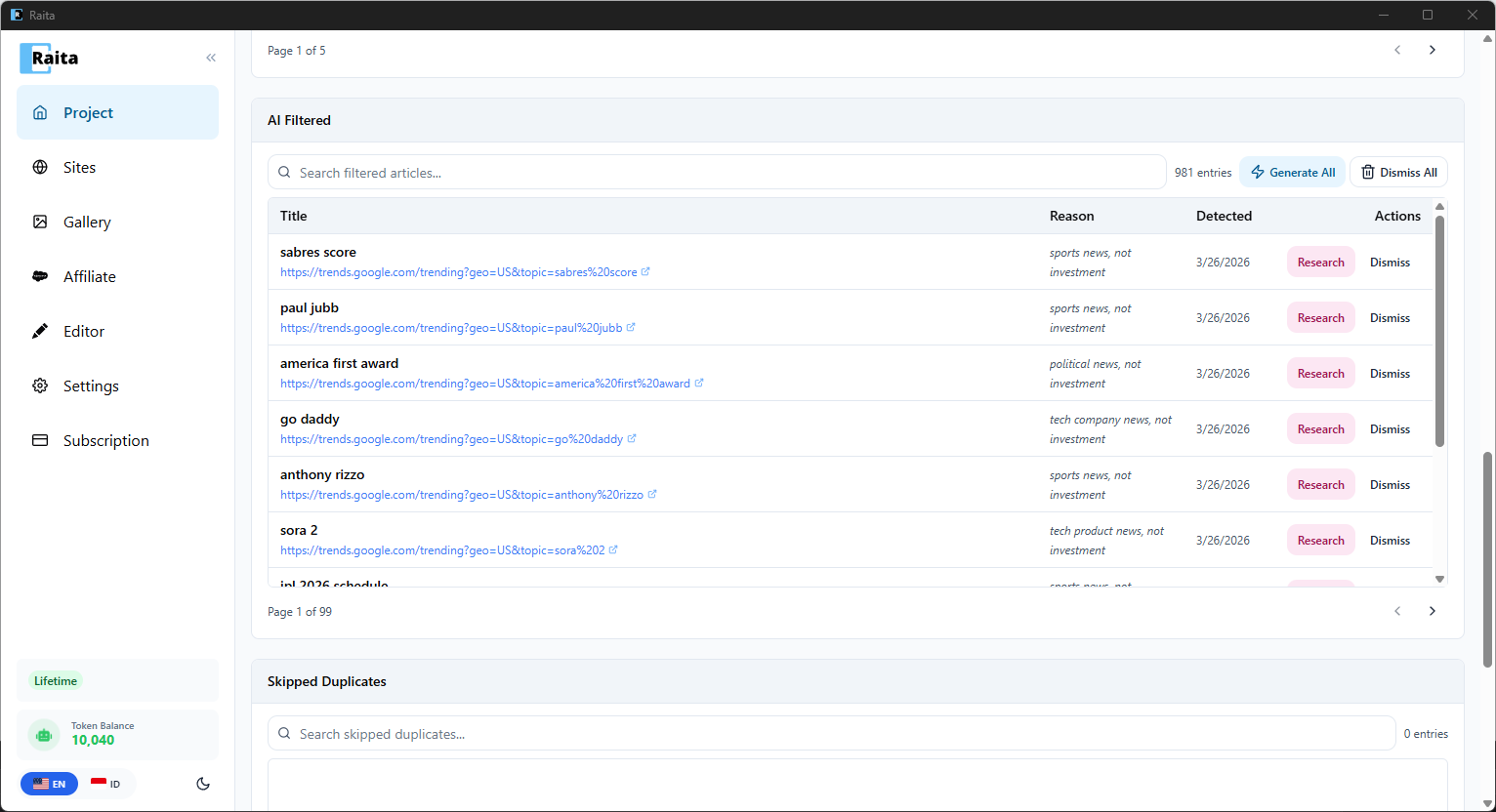
Auto-Pilot is configured per project. Go to your project and click the Auto-Pilot tab.
1. Choose a Source Type
- RSS / Sitemap — monitor news feeds and sitemaps, then generate articles from newly published URLs
- Google Trends — watch daily trending searches and draft articles around rising topics
2. Configure the Source
For Google Trends:
- Trend Region — choose the country to monitor (e.g. United States, Indonesia)
- Check every — how often to check for new trends (e.g. every 1 hour)
- Articles per trend — how many unique article ideas to generate per trending topic (default: 2)
For RSS / Sitemap:
- Feed URL — the RSS/Atom feed or sitemap URL to monitor
- Check every — polling interval
3. Set Behavior
- When new content is found — choose to auto-create articles as drafts or auto-publish
- Title & Keyword — how to extract article titles (e.g. rewrite trend into original headline)
- Daily limit — maximum articles generated per day
4. Set AI Filter (Optional)
Add a filter prompt to only generate articles that match your niche:
e.g. "Only generate articles about coffee. Skip news roundups and opinion pieces."
AI evaluates each new entry against this prompt to decide whether to generate. Leave empty to accept all.
5. Choose a Prompt Template
Select a generation prompt — pick a starter template (Simple V4, Blaze V4, Compose V4) or configure manually.
6. Start
Click Generate to activate Auto-Pilot. It will begin monitoring and generating articles automatically.
Active Feeds & Inbox
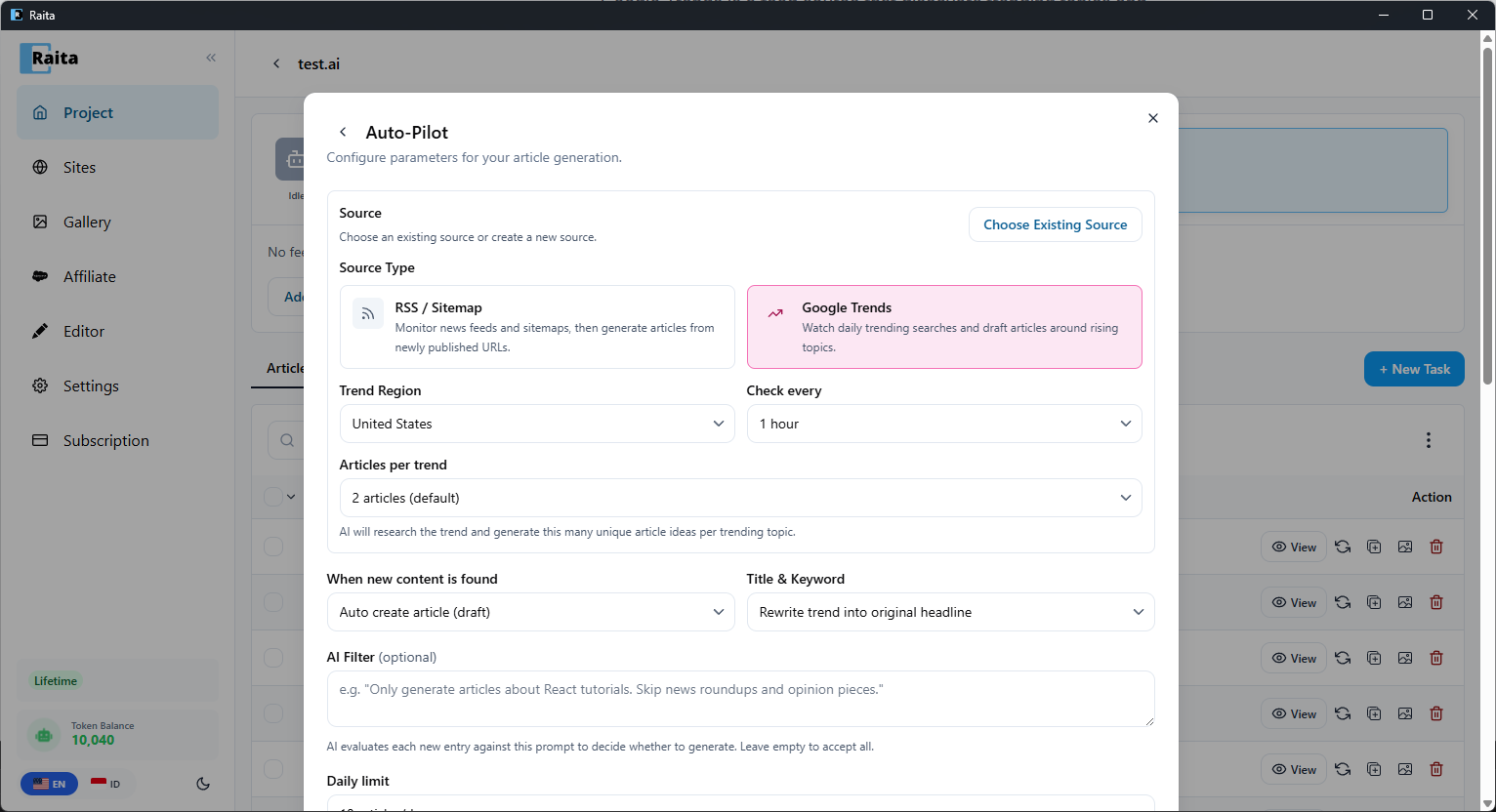
Once configured, your feeds appear in the Active Feeds section of the Auto-Pilot tab. Each feed shows its type (RSS, Google Trends), polling interval, last poll time, and current status.
Below the active feeds is the Inbox — this is where new items land when the source policy is set to manual review, or when AI is unsure about a trend's relevance.
Working with the Inbox
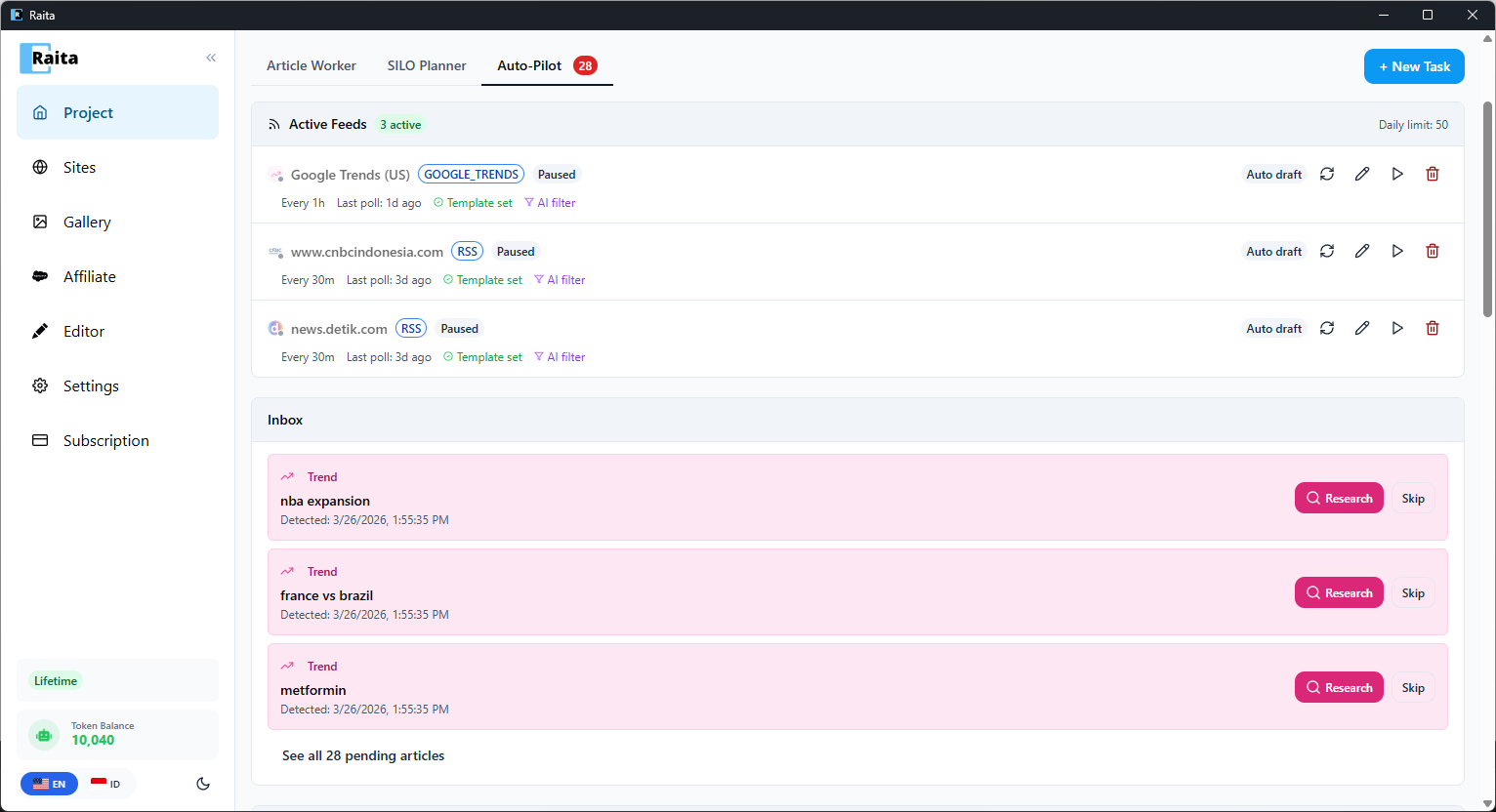
Each inbox item shows the trend or article title, detection date, and two actions:
- Research — AI researches the trend and generates multiple unique article ideas based on it. These are then queued as Article Workers.
- Skip — dismiss the trend if it doesn't match your niche
For auto-draft or auto-publish sources, articles are created automatically without appearing in the inbox.
Activity Log
Created articles show up in both the regular Article Worker table and the Activity log on the Auto-Pilot tab. The activity log shows each generated article with its topic, source (Trends/RSS), time, and status.
AI Filtered
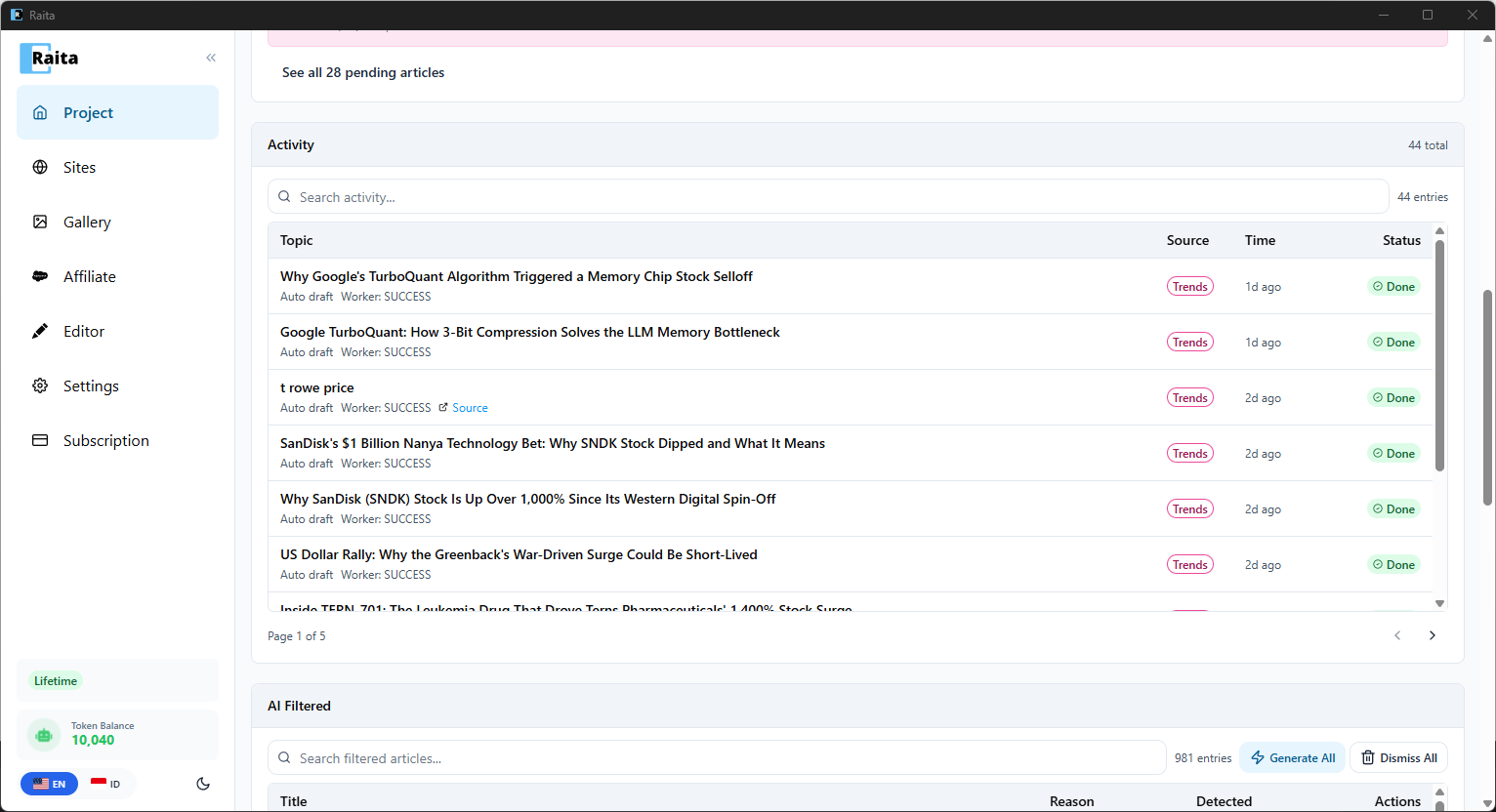
Below the activity log is the AI Filtered section. This shows trends and articles that were rejected by your AI filter, along with the Reason why they were filtered (e.g. "sports news, not investment").
Each filtered item has two actions:
- Research — override the filter and generate articles from this trend anyway
- Dismiss — permanently remove it from the list
You can also Generate All or Dismiss All in bulk.
Below AI Filtered is the Skipped Duplicates section, showing items that were skipped because they were already generated.